Download
One player.
Android.
The ScreenQube player is an Android application. That is the whole compatibility story, and we would rather put it in the first line than let you discover it after buying hardware.
How to install the ScreenQube Player app on Android
Overview
This guide shows how to manually install the ScreenQube Digital Signage Player app on an Android device by downloading the APK file, then pair the screen with your Infotech.Works Digital Signage account.
-
Step 1: Open the ScreenQube website on your TV
Open the Chrome browser on your Android TV or display and visit https://screenqube.com/.
-
Step 2: Download the player
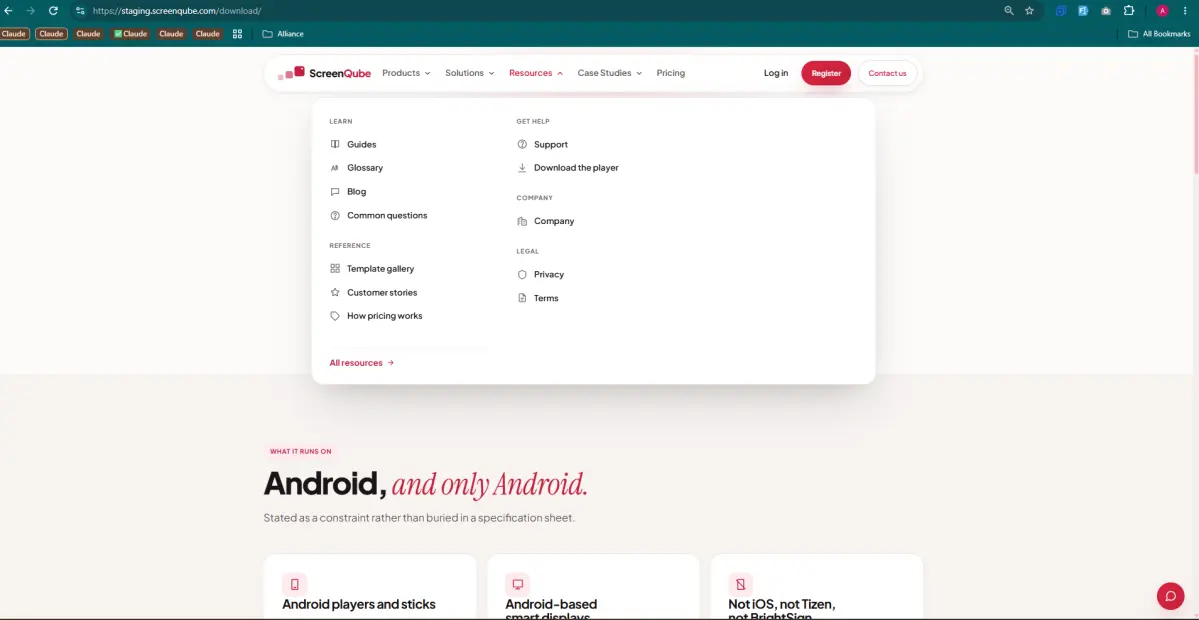
Click Resources in the top menu, then click Download the player under Get Help. Wait for the APK download to complete.
-
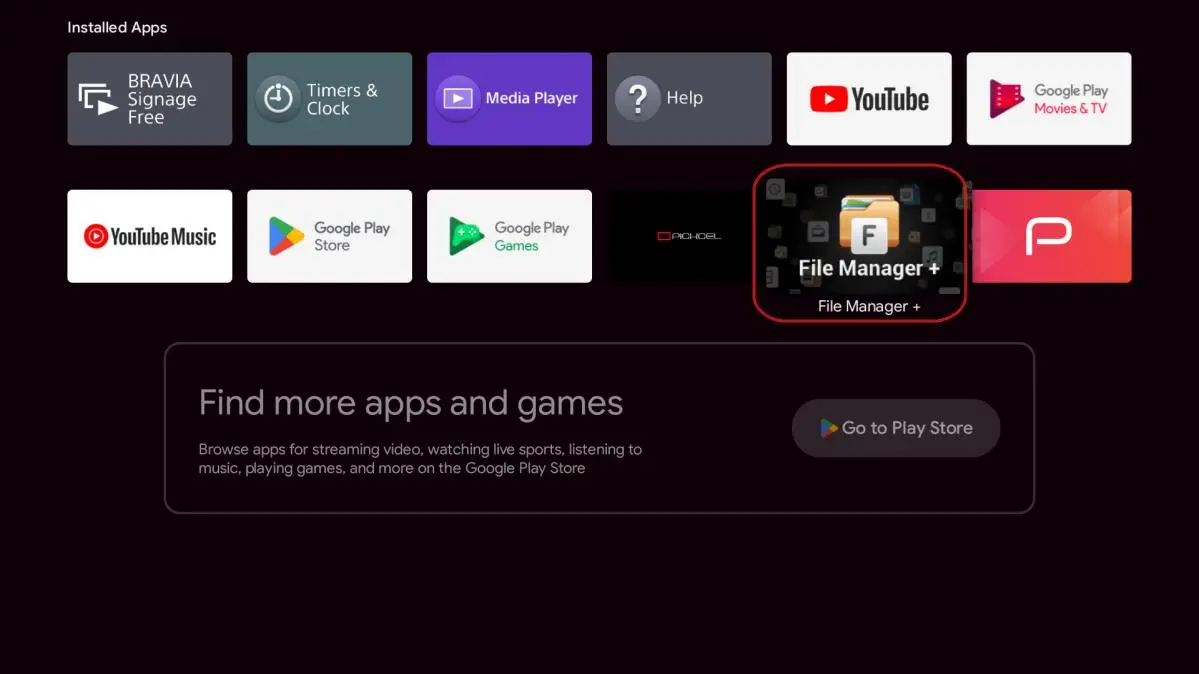
Step 3: Open File Manager
Once the download is complete, open the File Manager (My Files) on your device.
-
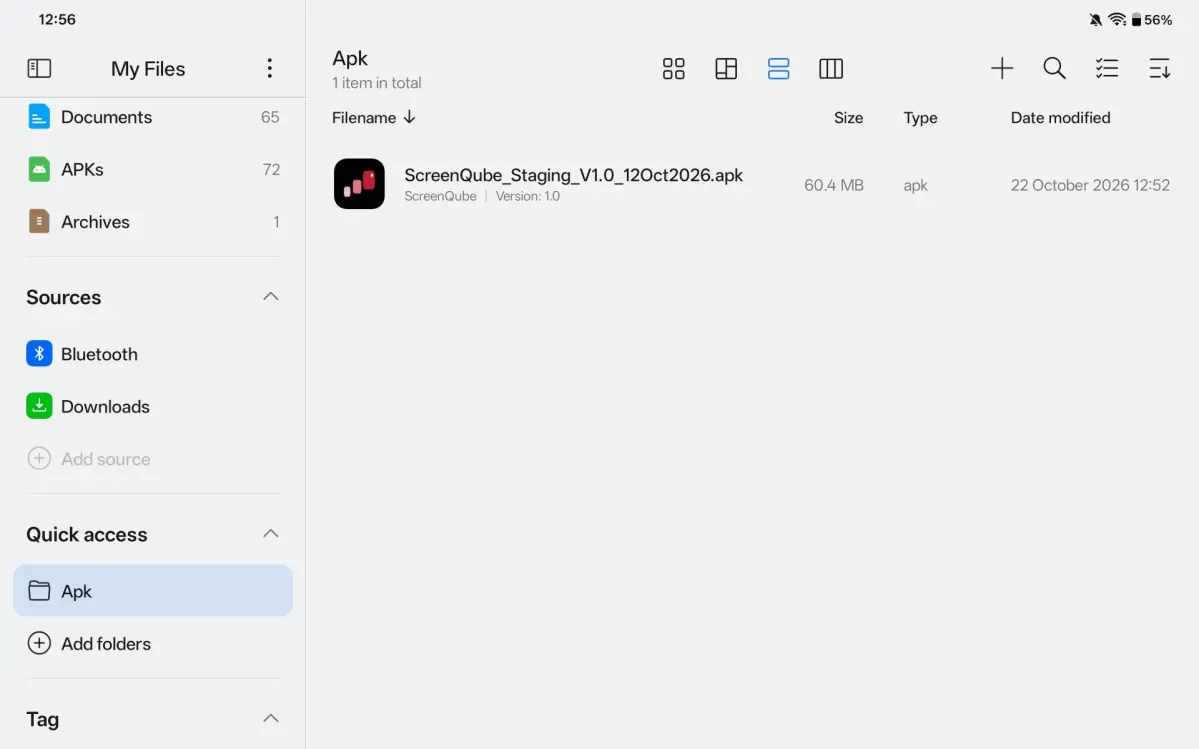
Step 4: Locate the APK file
Navigate to the Downloads folder (or the folder you saved it to) and find the downloaded APK file, for example ScreenQube_V1.0_12Oct2026.apk.
-
Step 5: Install the APK
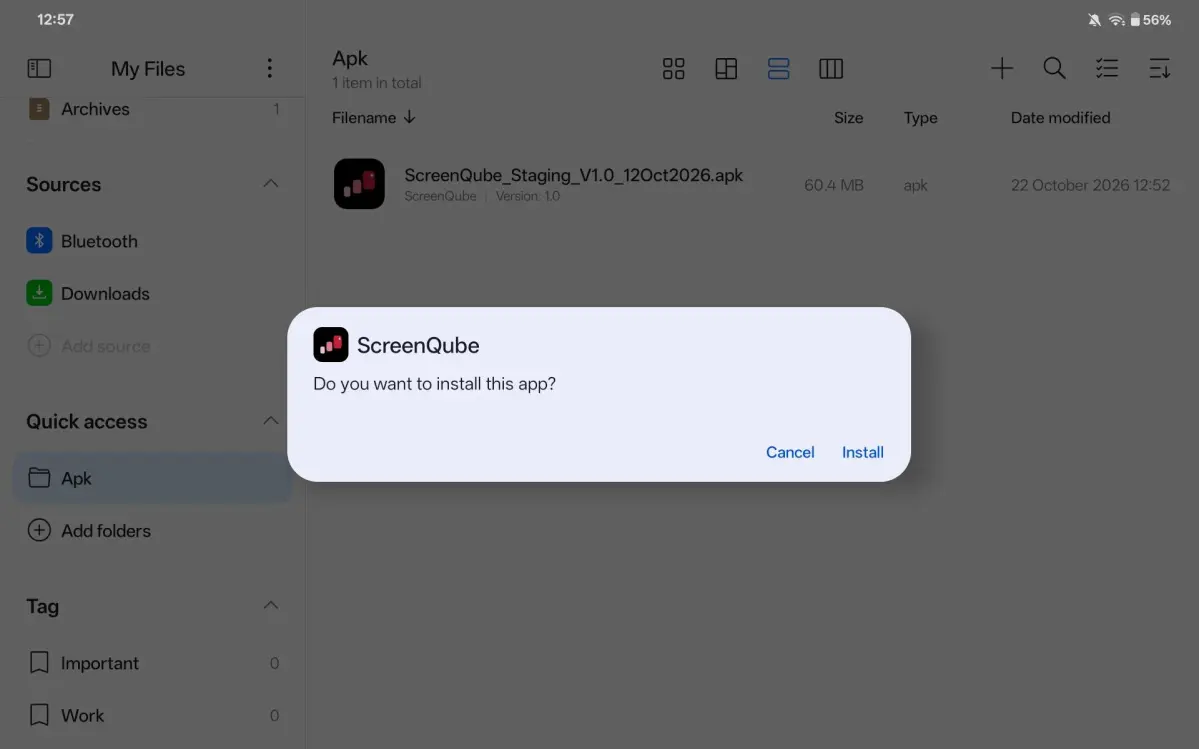
Tap the downloaded APK file. If prompted, allow installation from unknown sources and follow the on-screen instructions.
When asked "Do you want to install this app?", tap Install.
-
Step 6: Launch the app
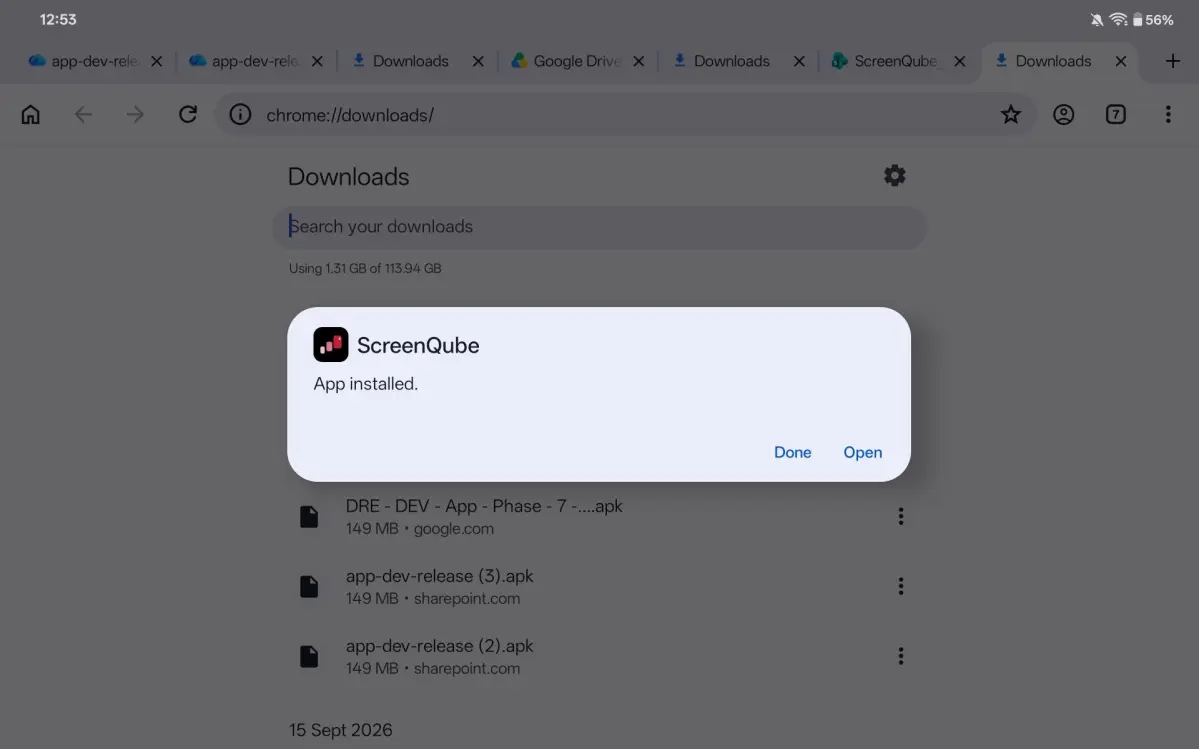
Once installation completes, tap Open.
-
Step 7: Get the pairing code
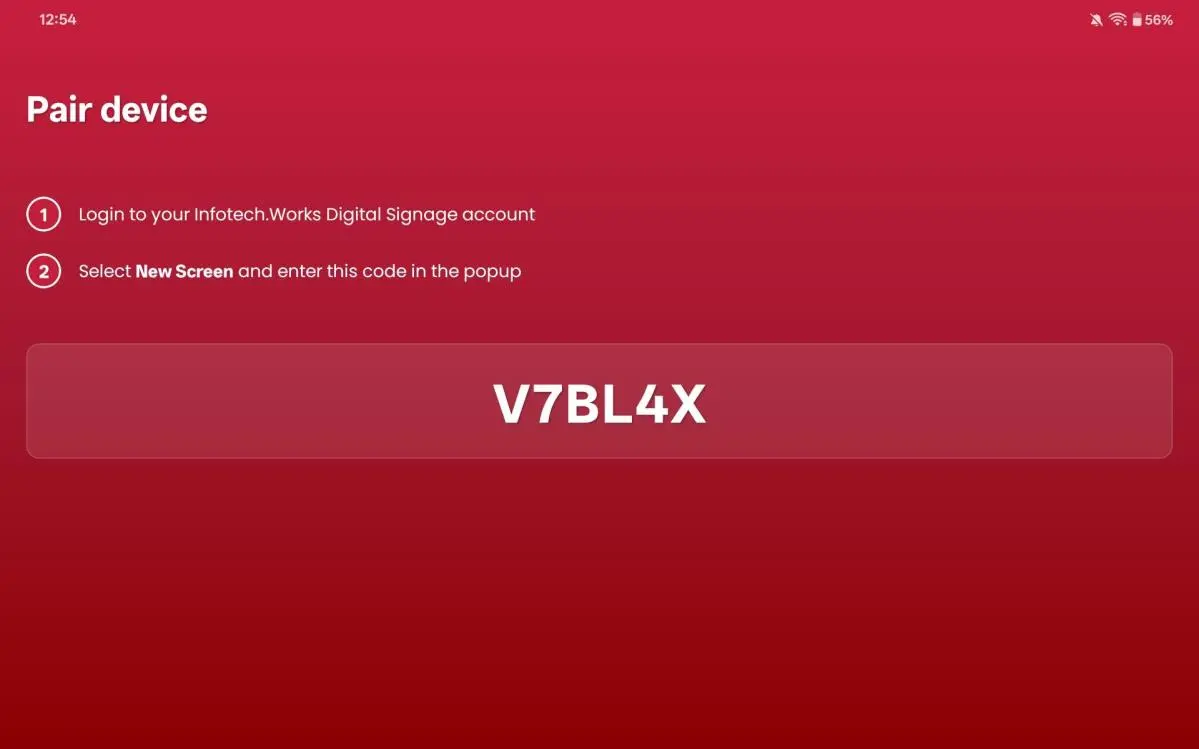
The ScreenQube app launches on your device and shows the Pair device screen with a six-character pairing code (for example, V7BL4X). You will enter this code in your ScreenQube console to pair the screen.
Complete the setup
- In a browser, sign in to your Infotech.Works Digital Signage account.
- Select New Screen and enter the six-character code from the device in the popup.
The screen is now paired and ready to receive content.