Take Screenshot
The strongest trust feature in the product. Not what it was told to show — what it is showing.
Operations · Live Monitoring
Every signage platform will tell you a screen is online. Online means the player checked in. A stuck frame, a failed download and a perfectly healthy screen all report the same way — which is why the screenshot is the feature that matters here.
Plans, prices and trials are set by your ScreenQube partner.
Where it ends up
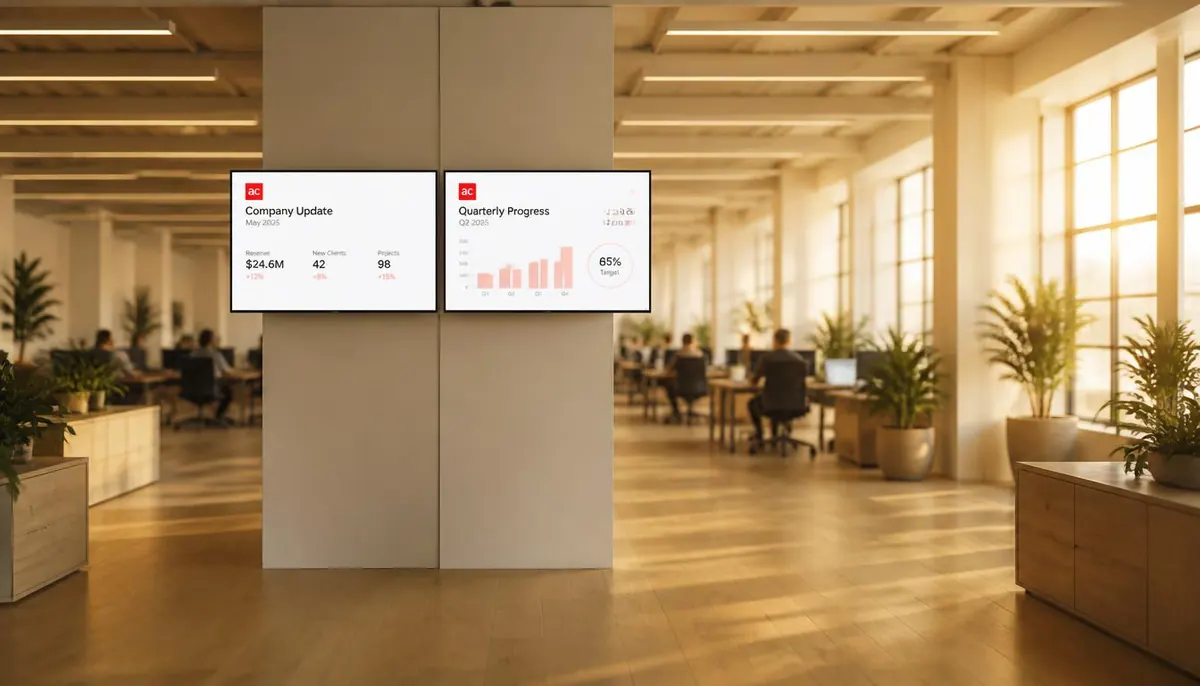
The screen above is what you publish. This is where it ends up.
How it is made
Named against the product's own modules rather than invented for a marketing page.
Playing, Online (Idle), Offline and Paused — with a last-seen time against each.
Total Disconnected Screens sits beside Total Active Screens on the dashboard.
Ask a screen for a picture of what it is actually displaying.
Reload, clear the cache, clear its data, or reboot it.
What you get
The strongest trust feature in the product. Not what it was told to show — what it is showing.
The instruction nobody wants to give a shift manager over the phone.
For the screen that is online and stuck.
With a last-seen time, so 'offline' has a duration.
How long each screen has been up, as a report you can keep.
Counted per site as well as across the estate.
Who runs this
Nearby
Questions
Yes — Take Screenshot asks the screen for a picture of its current output. It is the one thing that distinguishes a healthy screen from a stuck one.
Yes, along with reload, clear cache and clear data.
Yes. There is an Uptime Report. We publish no percentage, because none has been measured against production.
No alerting or notification has been observed in the console. The count is on the dashboard; nothing pushes it to you.