Department wayfinding
Which floor, which wing, which lift. The single most-asked question at any hospital desk.
Healthcare
Most of what a waiting room asks is the same five questions. Put the answers on the wall — where to go, how long, what to bring, what changes today — and the desk gets the time back.
Plans, prices and trials are set by your ScreenQube partner.
Where it ends up
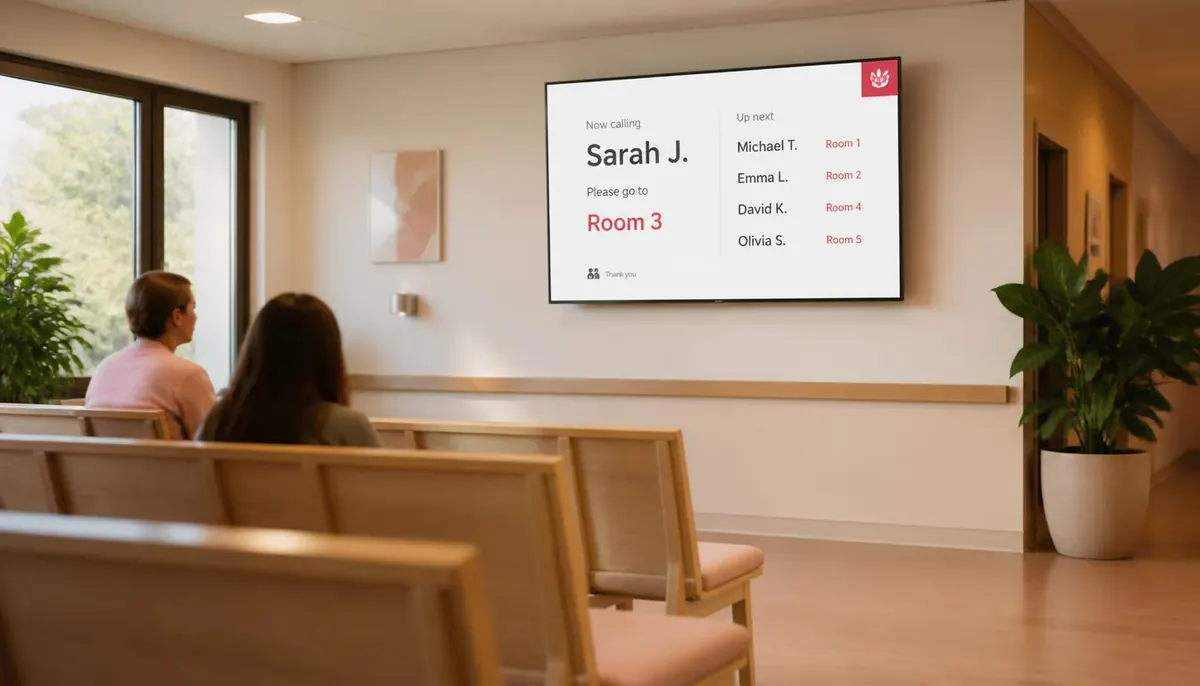
The screen above is what you publish. This is where it ends up — a display a customer stands in front of, driven by a player that fetched it on its own.
What goes on the screens
Every one of these is ordinary media, arranged in Composition and sent out by Publish. Nothing here needs a separate system.
Which floor, which wing, which lift. The single most-asked question at any hospital desk.
Which clinics are running, and which are behind.
Seasonal advice, screening reminders and pre-appointment instructions, on a schedule.
The notices that have to be visible in every waiting area.
Back-of-house screens on the same platform as the public ones.
The printed A4 sheet, legible and current, and changed in one place.
Where the screens go
The longest dwell time in the building, and the screen people actually read.
Wayfinding first, everything else second.
Visiting hours, ward notices, and what changed today.
Rotas, safety notices and training dates.
How it is run
The same four steps whether you have four screens or four hundred. This is the real console, not an illustration.
One facility per site, branch or building. A screen joins by showing a registration code, which you type in once. Switch between facilities from the header.
Media goes into the library, in folders, with tags. Composition arranges it into zones — your own files, plus App Store apps like weather, news or a ticker.
On a schedule, with day sequences. Or QuickPlay, which the console describes as displaying content instantly for a flash sale or an emergency. Or as the default composition a screen falls back to.
Live Monitoring reports each screen's state. Take Screenshot shows what one is really displaying. Reload, clear the cache or reboot it remotely.
What it fixes
Set it up as
Nearby
Questions
No integration with a patient administration or queue system has been observed in the console. Screens are published from the Media Library and Composition.
Yes. Each site is a facility with its own screens, and Publish targets the facilities you choose.
Users belong to groups, and Audits records every create, update and delete against the person who made it.
No. An Android player app runs on the display itself and fetches its content.
Talk to us about becoming the partner who sells it.
We will introduce you to the partner who covers your region.